
Quick verdict
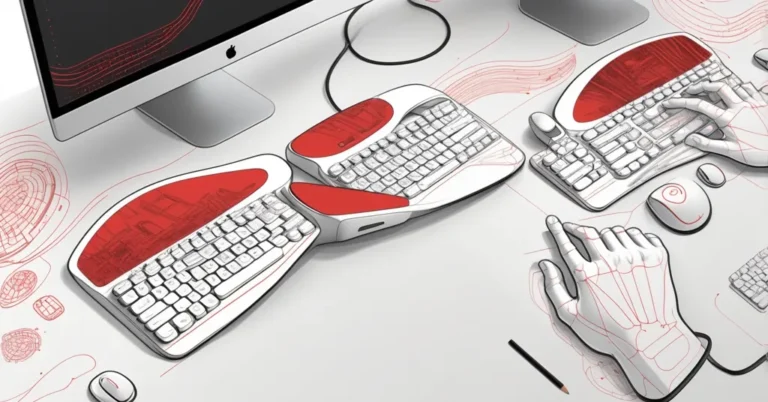
- What it is: Razer Pro Type Ergo is a premium split ergonomic keyboard that borrows Razer’s gaming-grade controls and adds productivity-first features for long typing sessions and multi-device work.
- Best for: Knowledge workers, creative pros, and executives who type a lot, juggle multiple devices, and want programmable dials for faster workflows.
- Trade-offs: Bulky footprint, a short retraining period for the split layout, non-removable wrist rest, and a premium price (list price as of Apr 2026: $189.99).
A one-line thesis
Razer’s Pro Type Ergo packages ergonomic comfort, multi-device Bluetooth, and hardware dials into a productivity keyboard that brings gaming-grade customization to everyday office work.
Specs at a glance
- Model: Razer Pro Type Ergo
- Price: $189.99 (list price as of Apr 2026)
- Footprint: ~18.3″ × 9.6″
- Switches: Low-profile scissor switches (short travel for faster typing)
- Layout: Split ergonomic layout with attached vegan-leather wrist rest (non-removable)
- Controls: Two chrome dials + three macro buttons; app profiles preloaded for Teams, Office, Adobe, DaVinci, browsers
- Connectivity: Bluetooth pairing for up to three devices
- Battery: Razer claims up to three months with RGB off
- Software: Razer Synapse + Chroma RGB (customization and lighting)
How I tested it
Hands-on testing ran over 10 days using the keyboard on a Windows 11 laptop and a macOS desktop—switching devices via Bluetooth and experimenting with Synapse customization on Windows. I used long-form document editing, spreadsheet work, light coding, creative apps, and repeated ChatGPT prompt cycles to simulate a knowledge-work day. Battery estimates were observed anecdotally; the three-month figure is Razer’s claim and would need extended testing to confirm.
Design and build — ergonomics with a Razer accent
The Pro Type Ergo is unapologetically large. At roughly 18.3″ by 9.6″, it fills most desks and prioritizes comfort over minimalism. The split layout (the keyboard is physically divided into left and right halves to reduce shoulder and wrist strain) is joined by a plush vegan-leather wrist rest that’s attached rather than removable—great for long sessions, less ideal if you prefer swapping rests.
Razer’s gaming DNA is visible: chrome dials, subtle RGB accents, and a solid-feeling chassis. It’s higher-end in materials and finish compared with generic office keyboards, which matters if your peripherals are part of the executive aesthetic.
What the terms mean
- Scissor switches: Low-profile key mechanism that’s quieter and has shallower travel than mechanical switches—optimised for speed and lower finger fatigue.
- Split layout: Two keyboard halves that let wrists sit more naturally and reduce shoulder pronation.
- Macros: Sequences of keystrokes or commands you can record and trigger with a single button.
- Razer Synapse: Razer’s configuration software for remapping keys, creating macros, and storing profiles.
- Chroma/RGB: Lighting system and visual customization—mostly cosmetic but sometimes useful for visual cues.
“The keyboard is designed for productivity but carries clear traces of Razer’s gaming heritage.”
Typing experience and ergonomics
The keys use low-profile scissor switches with concave caps and shorter travel. That design favors speed and reduces finger fatigue on long sessions, though it lacks the tactile thump of a mechanical switch—so if you love heavy typing feedback, this won’t replace a clicky mech board.
There is an adjustment curve to the split layout. After a few days of focused work, typing speed returned to baseline and the hands felt less sore after extended sessions. For heavy typists the payoff is real: reduced wrist extension and more relaxed shoulders. For short-session users who prioritize plug-and-play familiarity, the split layout may feel like an unnecessary complication.
“It’s one of the most comfortable keyboards the reviewer has used, though the split layout requires retraining muscle memory.”
Controls, software, and customization
The two chrome dials are the feature that most clearly separates this from run-of-the-mill office keyboards. Each dial ships with eight pre-loaded app-specific functions and Synapse will allow deep remapping—up to hundreds of custom functions if you build them. The three macro buttons make one-touch workflows possible for repetitive tasks.
Synapse provides powerful options, but it’s not friction-free. The UI requires some trial-and-error, and Razer often nudges users toward a Razer account for cloud sync (handy for personal setups, less so for locked-down enterprise environments). If you enjoy tinkering, the customization is a major win. If you want zero setup, expect a little onboarding time.
Make it work for AI agents and ChatGPT workflows
Peripherals matter for AI-driven work because speed and context switching are the currency of productivity when you’re iterating prompts, summarizing text, or running code refactors with an agent. The Pro Type Ergo doesn’t have built-in “AI” buttons, but its programmable dials and macro buttons are perfectly suited to these workflows.
Examples that save minutes every day:
- Prompt iterate: Map a macro to copy selected text, switch to a ChatGPT browser tab, paste, and send—so you can A/B test phrasing quickly.
- Summarize selection: Bind a macro that copies a paragraph, opens a local summarizer or ChatGPT, pastes, and triggers the summarize command.
- Code refactor: Dial through common refactor options (e.g., select → copy → open IDE plugin → paste) for quick iterations while the agent runs transformations.
- Dashboard switcher: Assign dial steps to jump between Slack, Excel, and the CRM for rapid context changes during sales or ops reviews.
Quick how-to: map a ChatGPT macro (Windows using Synapse + AutoHotkey)
- Create a new macro in Razer Synapse and choose “Keyboard Macro.” Record the sequence: Copy (Ctrl+C), then a keystroke that focuses your browser (Alt+Tab or a custom hotkey), then Paste (Ctrl+V) and Enter.
- If you need conditional logic (e.g., wait for a window), use AutoHotkey to script the sequence, save as an executable or hotkey, and then map the macro button to launch that script via Synapse.
- Assign the macro to a physical button or dial action. Test and tweak delays so everything runs reliably.
Quick how-to: map a summarize macro (macOS using Synapse + Keyboard Maestro)
- Use Keyboard Maestro to build a macro: copy selection, open the ChatGPT tab, paste, send, and wait for response; optionally capture the result back into your editor.
- In Synapse, map a macro button to trigger the Keyboard Maestro hotkey.
- Fine-tune timing and app focus in Keyboard Maestro so it works smoothly across Safari/Chrome and Slack/Mail.
These are practical examples you can build today. The bigger opportunity: keyboard makers could ship more AI-native templates (summarize, refactor, extract action items) to shorten setup time—something enterprise customers would welcome.
Pros and cons
- Pros: High-quality build, comfortable attached wrist rest, programmable dials and macros that materially speed workflows, multi-device Bluetooth pairing, polished aesthetic.
- Cons: Large footprint, non-removable wrist rest, asymmetric key duplications (B duplicated, Y only on right) may annoy some touch-typists, Synapse adds setup complexity, premium price.
Key takeaways and quick questions
- Will this reduce wrist fatigue enough to justify the price?
For heavy typists and anyone who spends long blocks of time editing, the ergonomic split and plush rest can reduce strain and be worth the investment over time—especially when paired with macros that shave off repetitive motions.
- Is the split layout worth retraining for?
Yes, if you type for hours and prioritize ergonomics. Expect a few days to a couple of weeks to adapt.
- Can it speed up AI and ChatGPT workflows?
Absolutely. The dials and macros are ideal for prompt iteration, summarization, and rapid context switching—though you’ll likely need a bit of setup time to automate the most useful actions.
- Will Synapse be a blocker for enterprise rollouts?
Synapse enables deep customization but introduces friction: it often asks for a Razer account and requires local/config scripts for batch deployments. IT should test profile export/import and consider third-party tools for centralized provisioning.
Alternatives and price context
- Logitech MX Keys: Smaller footprint, excellent typing feel, and strong battery life—better for minimal desks but offers fewer hardware dials.
- Microsoft Sculpt Ergonomic: Proven split layout with a dedicated ergonomics focus; simpler feature set and lower price, but less customization.
- Kinesis Advantage2: Deeply ergonomic and productivity-focused, but steeper learning curve and often higher price.
Compared to these, the Pro Type Ergo sits in the middle: more customizable and stylish than typical office boards, more ergonomic than most flat designs, and priced for buyers who want both comfort and hardware controls.
Enterprise considerations
IT teams should validate Synapse behavior in their environment—does it require admin rights, are profiles exportable in bulk, and does cloud sync align with security policies? For mission-critical deployments, build golden images or use endpoint management tools to pre-configure profiles. The keyboard’s multi-device Bluetooth is a plus for hot-desking and hybrid teams, but make sure corporate Bluetooth policies and device pairing workflows are documented.
Verdict
Razer Pro Type Ergo is one of the more compelling productivity keyboards that leans on gaming-class customization without sacrificing ergonomics. It’s not for minimalists or bargain hunters, but for teams and power users who want programmable dials, multi-device switching, and an ergonomic split layout, it offers real productivity lifts—especially when you map macros to accelerate AI-agent and ChatGPT-driven workflows.
“The command dial and pre-bound macro keys are highly practical and valuable for quick navigation.”