
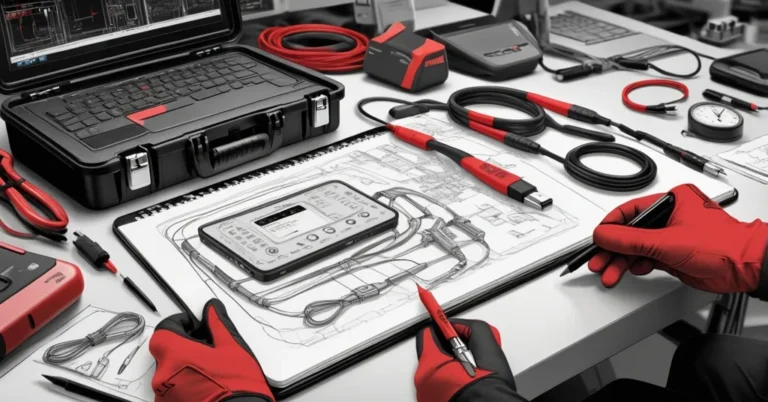
Why you should keep a small cable kit for business and field work
A tiny, curated cable kit will save hours during client setups, deployments, and travel. Purge the junk, then assemble a focused set of cords, adapters, and tools that solve real compatibility headaches fast.
Why USB‑C compatibility isn’t the universal fix
USB‑C promised a single connector for everything, but the reality is a messy transition. USB‑C can deliver more power and faster charging — only if both the charger and the device perform a power‑delivery “handshake.” Many inexpensive gadgets (and some power banks sold on marketplaces like Temu and eBay) don’t implement that negotiation. They’ll charge only with the older USB‑A cable they shipped with. That’s why keeping a few “legacy” cables is still practical for business users.
Pro tip: if a device ships with a USB‑A→USB‑C lead, assume it may not be USB‑C PD‑capable — keep that cable.
The minimal kit that pays for itself
Pack these items and label them. They’re compact, cheap, and earn back their shelf space the first time you avoid a failed demo or a midnight troubleshooting call.
- USB‑A → USB‑C: 2x. Keeps older chargers useful and fixes devices that won’t negotiate over USB‑C→USB‑C.
- USB‑A → micro‑USB: 1x. Still common on cheap accessories and many power banks.
- C7 (figure‑of‑eight) mains lead: 1x. For small chargers, AV gear, and some laptop bricks.
- C13 earthed mains lead: 1x. For monitors, desktop PSUs, and pro equipment.
- Ethernet cables (RJ45): 1 ft, 3 ft, 6 ft — one each. Vital for provisioning devices and reliable connections.
- Universal DC wall‑wart (adjustable): 1x. Covers many barrel‑plug devices and consolidates drawers.
- USB dock / hub: 1x compact model with HDMI, Ethernet, and a couple of USB‑A ports — especially useful for ultralight laptops.
- Tiny USB adapters: USB‑C↔USB‑A, micro↔USB‑C — a handful to bridge odd pairings.
- USB‑C boost module: 1x. Converts USB‑C PD to selectable DC voltages (up to ~20V) for legacy gear.
- Multi‑lead charging cable: 1x. Multi‑charging cables reduce tangle and weight when traveling.
- USB power meter: 1x. The single best diagnostic tool for charging issues (shows volts, amps, and delivery problems).
Why each item matters for business
- USB‑A→USB‑C: Saves presentations and device onboarding when USB‑C negotiation fails.
- micro‑USB: Prevents dead accessories during demos and field installs.
- C7/C13: Monitors and AV gear often need the correct mains lead — not having one can stall a meeting.
- Ethernet: Cuts Wi‑Fi setup time and solves provisioning for cameras, access points, and base stations.
- USB dock: Avoids frantic scavenging for adapters during client get‑togethers.
- Power meter & boost module: Diagnose and adapt quickly instead of guessing which cable failed.
Real scenarios where this kit wins
Demo saved: An account manager’s laptop battery died minutes before a pitch. A USB‑A→USB‑C cable and a compact dock kept the presentation running and the customer engaged.
Camera provisioning: A security camera refused to join the Wi‑Fi during an install. A 6 ft Ethernet cable got it online in under 90 seconds.
Legacy router revival: An office had a spare VoIP base station that used an odd DC barrel. The boost module matched voltage and polarity; the device worked and a replacement wasn’t needed.
Quick troubleshooting flow (what to try, and in what order)
- Try the original wall wart or cable that came with the device.
- Swap cables: use USB‑A→USB‑C or micro‑USB if available.
- Measure with a USB power meter: check voltage and current under load (look for significant drop or zero amps).
- If a barrel plug device, try the universal DC adapter or the USB‑C boost module set to the correct voltage. Double‑check polarity.
- If network issues, plug in an Ethernet cable and bypass Wi‑Fi for provisioning.
- If something still fails, label it, bag the problem parts, and note what worked — so the next time it’s faster.
How to use a USB power meter
- Connect the meter between charger and device. It will show volts (V) and amps (A).
- Healthy charging: voltage near expected (eg. 5V, 9V, 12V) and current >0.3–0.5A for small devices; laptops and PD devices will draw more.
- If volts drop significantly under load or current is zero, swap charger or cable — the meter tells you whether the port or the cable is at fault.
Storage, labeling, and maintenance
Store the kit in a small pouch with labeled compartments. Add a sticky note on each cable with its type and purchase year. Test the kit quarterly: try the power meter on each charger, inspect cables for frays, and replace anything with intermittent connections. A simple wiggle test and visual check will eliminate most surprises.
When to retire a cable: visible fraying, exposed wires, or intermittent connections during the wiggle test. Don’t gamble with power cords that show wear.
Safety and compatibility notes
- Voltage & polarity matter for barrel‑plug devices. Confirm voltage and center polarity before using a boost module or universal adapter.
- C13 earthed cords provide safety for devices that require grounding — don’t substitute with unearthed leads when a grounded cable is specified.
- Buy quality mains leads and adapters. Cheap, unbranded bricks can be fire hazards and may damage equipment.
Recommended kits by role (copyable)
Office IT admin (keeps a shared desk drawer)
- USB‑A→USB‑C x2, micro‑USB x1
- C7 x1, C13 x1
- Ethernet: 1 ft, 3 ft, 6 ft
- USB dock (HDMI + Ethernet) x1
- USB power meter + tiny adapter pack
Field salesperson / demo lead
- USB‑A→USB‑C x1, multi‑lead cable x1
- Small USB dock x1
- Universal DC adapter or boost module
- USB power meter (compact)
Frequent traveler
- Multi‑charging cable + USB‑C to USB‑A adapter
- Compact USB dock (if weight allows)
- Lightweight USB power meter
Cost, space, and environmental notes
Assembling a reliable kit usually costs well under $100 if you prioritize quality over novelty. A small padded pouch fits everything for desk storage or travel. When you discard cables, recycle them responsibly — many communities and electronics stores accept e‑waste. Labeling and sharing a standard kit list across teams reduces duplicate purchases and e‑waste over time.
Key questions and short answers
Which specific cables should I keep?
Keep USB‑A→USB‑C (x2), at least one USB‑A→micro‑USB, a C7 and a C13 mains lead, Ethernet cables (1 ft, 3 ft, 6 ft), and a compact USB dock or hub.
Why does USB‑C not always solve charging compatibility?
USB‑C needs a power‑delivery handshake to provide higher voltages. Some cheap devices don’t implement that circuitry and will only charge via the older USB‑A cable they ship with.
How many Ethernet cables should I keep and why consider a crimping tool?
Keep several lengths (short patch and a longer run). A crimping tool and extra RJ45 connectors let you build or repair bespoke cables on the fly for installations.
Can a universal adapter replace multiple wall‑warts?
Often yes — a quality adjustable DC adapter covers many barrel‑plug devices. Still keep one or two original power bricks for finicky equipment with nonstandard tolerances.
What small tools save the most troubleshooting time?
A USB power meter, a USB‑C boost module, and a couple of small adapters will diagnose and bridge most charging and power issues quickly.
Final takeaway
Minimalism meets pragmatism: purge the cable graveyard, then keep a focused, tested kit that solves real problems. The right cords and a tiny set of tools turn frantic troubleshooting into a quick swap, saving time, preserving client confidence, and preventing small incidents from becoming lost revenue.
If you only have time for one thing: pack a USB power meter and a USB‑A→USB‑C cable. They’ll diagnose and fix the majority of charging headaches.
Meta description suggestion: Build a compact cable kit for business: USB‑C compatibility tips, mains leads, Ethernet, and tools to avoid downtime. (120 characters)
Image alt‑text suggestion: “USB‑C compatibility test with USB power meter” and “Minimal cable kit for business with USB docks and mains leads”.